# How to Use the sBTC Bridge with Fordefi

{% hint style="warning" %}
This guide is specifically for entities or teams that use [Fordefi](https://fordefi.com/) as it will demonstrate the flow for a multi-approval transaction policy setup. This assumes you have the Fordefi wallet setup with its browser extension and with its mobile app.
{% endhint %}

The sBTC Bridge is a web application allowing you to convert your BTC into sBTC on the Stacks chain. If you aren't familiar with sBTC, be sure to check out the [sBTC Conceptual Guide](https://docs.stacks.co/learn/sbtc) to understand how it works.

{% hint style="danger" %}
Ensure that you are using the bridge located at [sbtc.stacks.co](https://sbtc.stacks.co/). This is the only official sBTC bridge.
{% endhint %}

The sBTC Bridge has been designed to be as simple as possible to use. But specifically for this guide, a **2-of-2 approval transaction policy**, targeting Bitcoin transactions, has already been setup in the Fordefi UI. It is assumed you have a similar setup as this guide will walkthrough the different steps needed to take in such a scenario where multiple parties need to approve a transaction.

If you need assistance in setting up such a transaction policy in Fordefi, check out their dedicated [docs](https://docs.fordefi.com/user-guide/policies).

### Walkthrough for minting sBTC

Here are the necessary steps to convert your BTC to sBTC using Fordefi:

{% stepper %}
{% step %}
**Confirm your BTC and STX vaults**

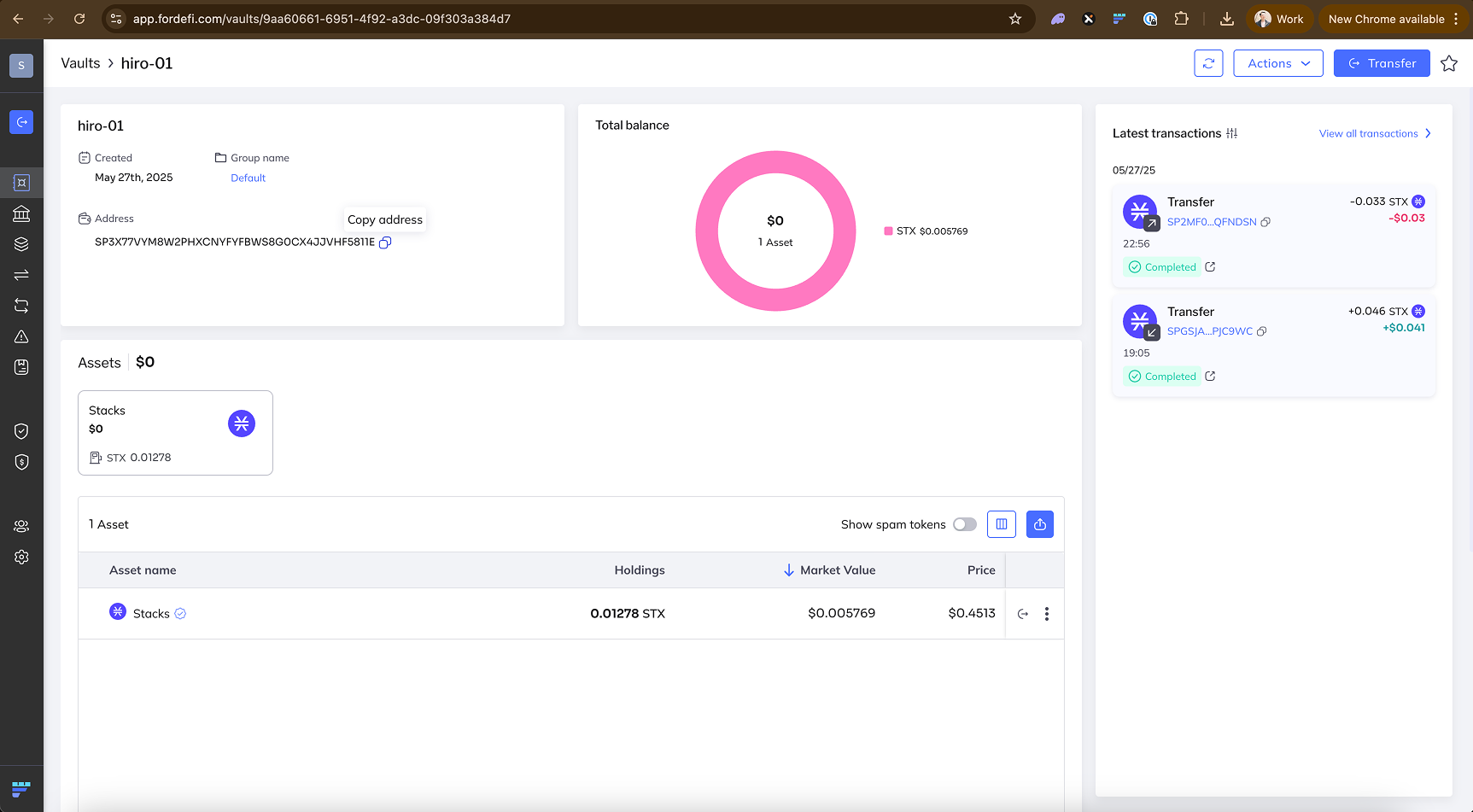
First, you'll need to make sure you have a vault for Bitcoin, and a separate vault for Stacks. Both of these vaults will be used later when connecting with the sBTC Bridge app.

<div data-with-frame="true"><figure><img src="https://2842511454-files.gitbook.io/~/files/v0/b/gitbook-x-prod.appspot.com/o/spaces%2FH74xqoobupBWwBsVMJhK%2Fuploads%2Fgit-blob-b9cb30d7a1b85399a22372827e8ee28734029e6f%2Fimage%202-with-fordefi.png?alt=media" alt=""><figcaption><p>A vault for native Bitcoin assets</p></figcaption></figure></div>

<div data-with-frame="true"><figure><img src="https://2842511454-files.gitbook.io/~/files/v0/b/gitbook-x-prod.appspot.com/o/spaces%2FH74xqoobupBWwBsVMJhK%2Fuploads%2Fgit-blob-6d0423b88b96c6653c45f0e8aab4e1f506940d8a%2Fimage%203-with-fordefi.png?alt=media" alt=""><figcaption><p>A vault for native Stacks assets</p></figcaption></figure></div>
{% endstep %}

{% step %}
**Connect your Fordefi wallet extension**

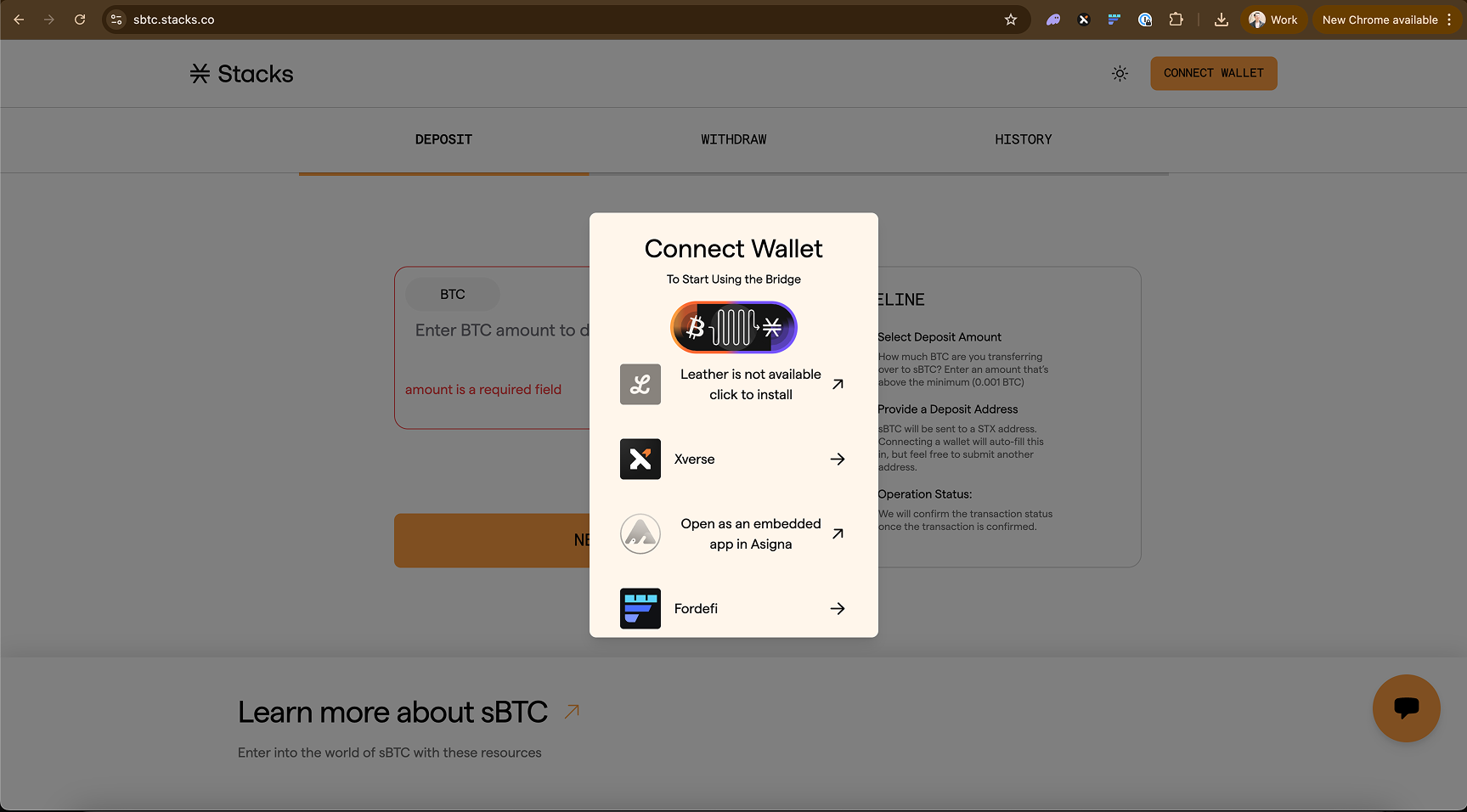
First, you'll need to connect your Fordefi wallet to the sBTC Bridge app.

<div data-with-frame="true"><figure><img src="https://2842511454-files.gitbook.io/~/files/v0/b/gitbook-x-prod.appspot.com/o/spaces%2FH74xqoobupBWwBsVMJhK%2Fuploads%2Fgit-blob-3842a7c913fb40abeb1e4ca5ddb655c3d0f44c33%2Fimage%204-with-fordefi.png?alt=media" alt=""><figcaption><p>Choose the option for Fordefi in the wallet selector modal</p></figcaption></figure></div>
{% endstep %}

{% step %}
**Choose which Bitcoin and Stacks vault you want to use**

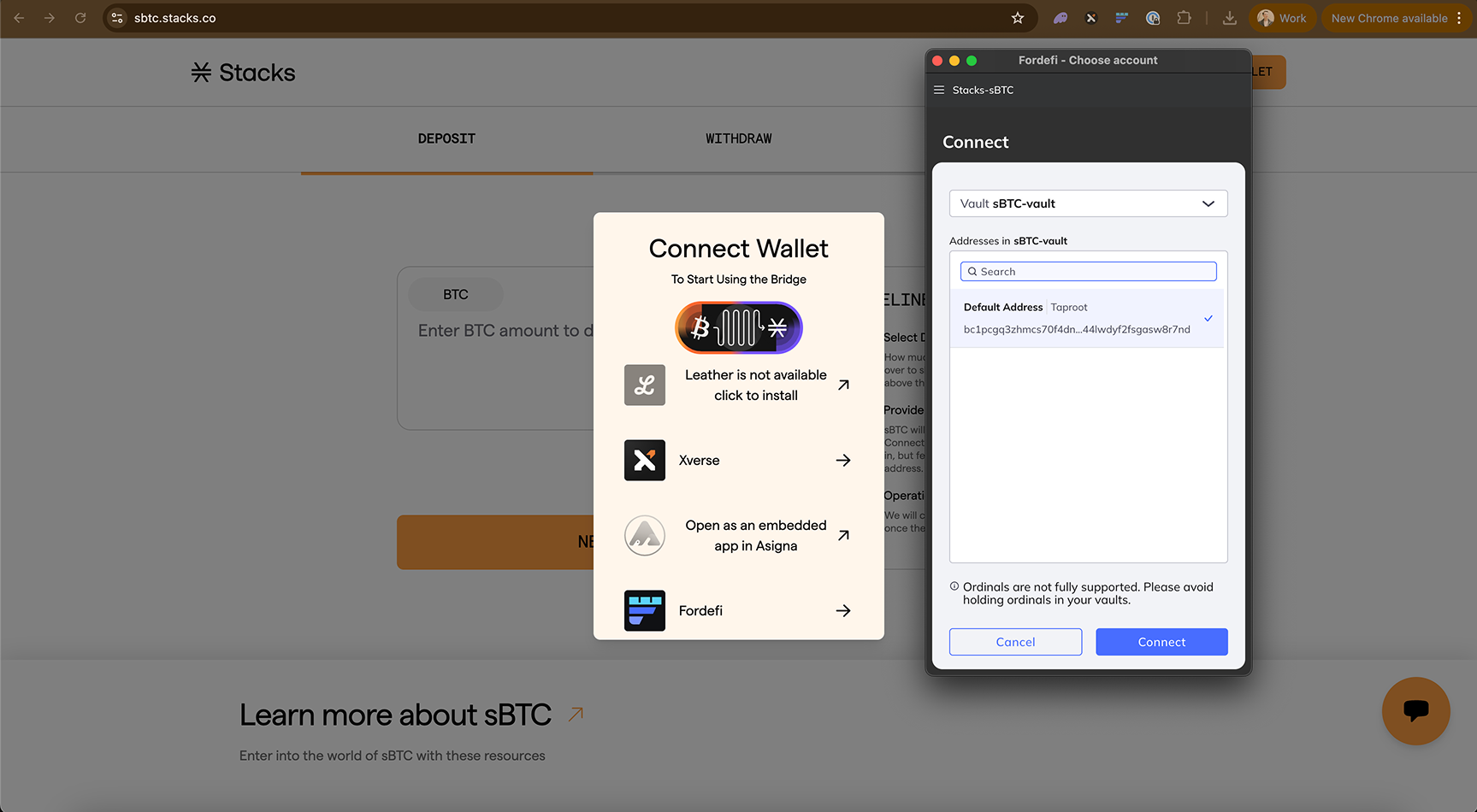
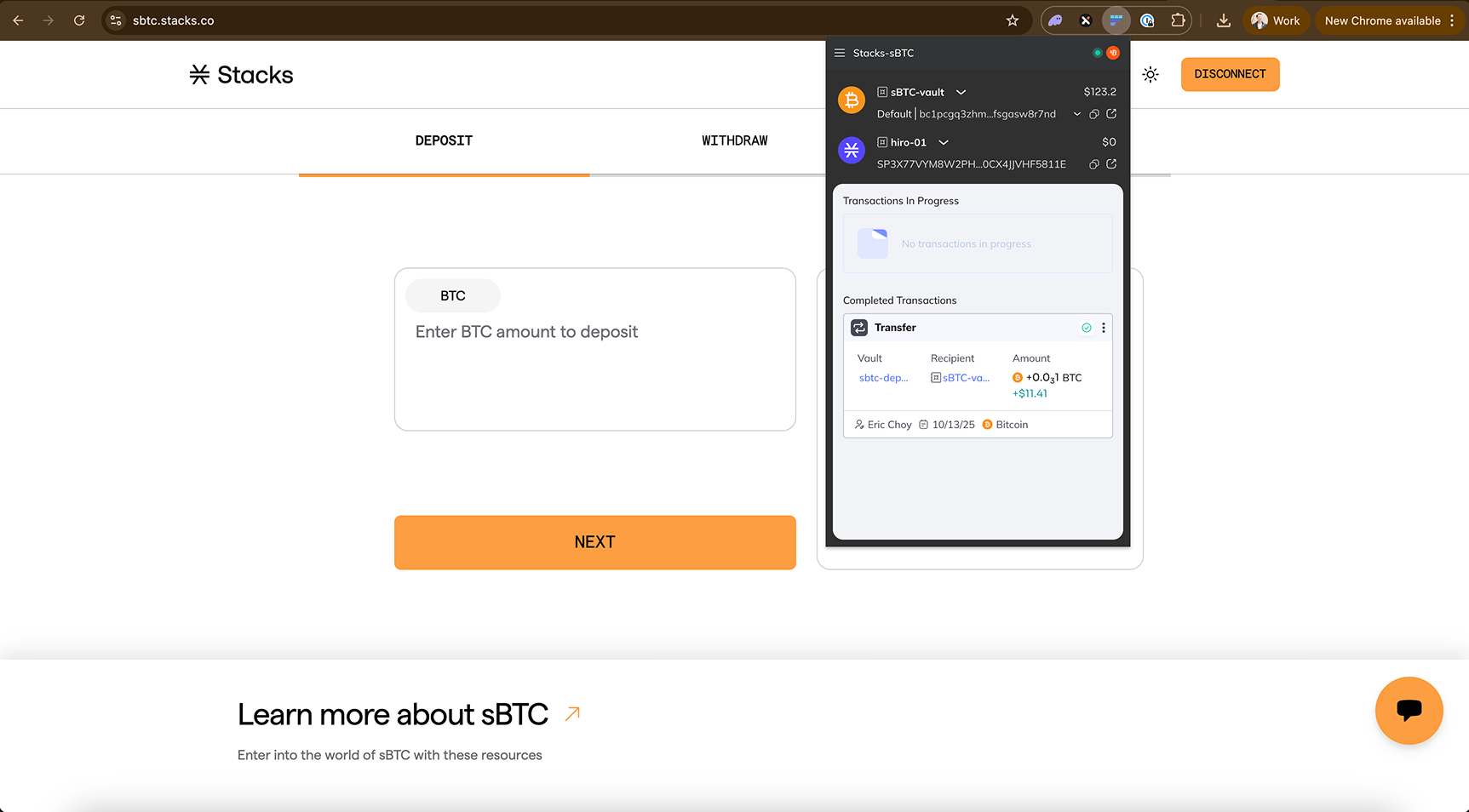
Next, the Fordefi extension will want you to select which Bitcoin vault, and then which Stacks vault you'd want to use. The reasoning for this is because you'll be needing to send a bitcoin transaction first from your Bitcoin vault, then you'll be receiving sBTC to your Stacks vault.

<div data-with-frame="true"><figure><img src="https://2842511454-files.gitbook.io/~/files/v0/b/gitbook-x-prod.appspot.com/o/spaces%2FH74xqoobupBWwBsVMJhK%2Fuploads%2Fgit-blob-6edd5519d73eaf4e3160dc8d060de615b24c70ef%2Fimage%205-with-fordefi.png?alt=media" alt=""><figcaption><p>The selected Bitcoin vault needs to have at least the minimum required amount (0.001 BTC) of bitcoin to peg-in</p></figcaption></figure></div>

<div data-with-frame="true"><figure><img src="https://2842511454-files.gitbook.io/~/files/v0/b/gitbook-x-prod.appspot.com/o/spaces%2FH74xqoobupBWwBsVMJhK%2Fuploads%2Fgit-blob-55f9302b8362b1278bc2dcd5842bd1b802376b0a%2Fimage%206-with-fordefi.png?alt=media" alt=""><figcaption><p>When both vaults are selected, you'll be able to see both at the top of the Fordefi extension when connected</p></figcaption></figure></div>
{% endstep %}

{% step %}
**Choose the amount of BTC to deposit**

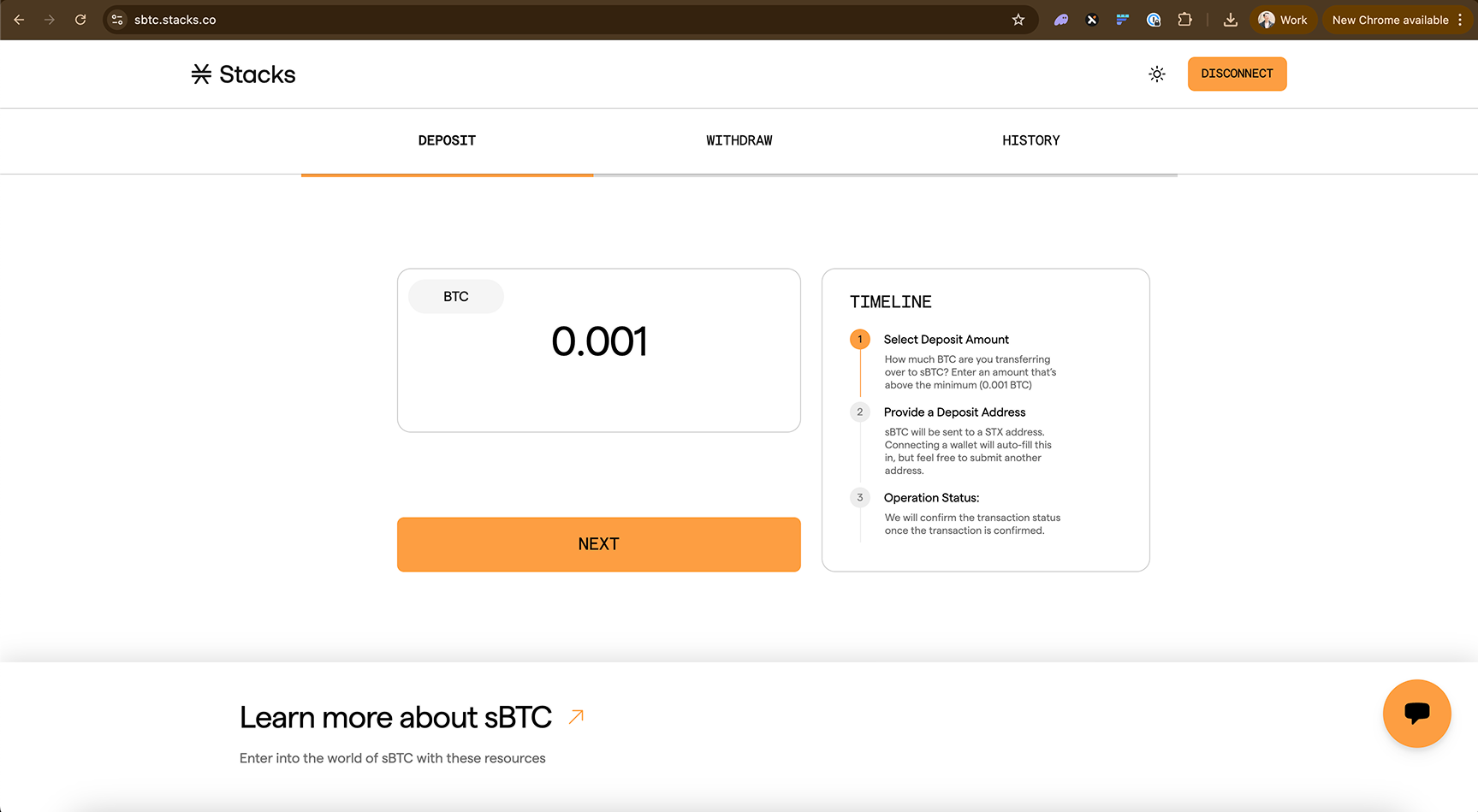
After your wallet is connected, choose how much BTC you would like to convert to sBTC.

{% hint style="info" %}
There are two transaction fees required to mint your sBTC. The first is when they initiate the bitcoin deposit transaction within their wallet. The second is a fee used to consolidate the deposit UTXOs into the single Signer's UTXO. This separate transaction fee happens automatically and is set to a max of 80k sats. This is automatically deducted from your minted sBTC. This is not a Signer fee but a regular bitcoin transaction fee.
{% endhint %}

<div data-with-frame="true"><figure><img src="https://2842511454-files.gitbook.io/~/files/v0/b/gitbook-x-prod.appspot.com/o/spaces%2FH74xqoobupBWwBsVMJhK%2Fuploads%2Fgit-blob-26d2b2a603740e301561d5b437a6cea7f3c65f3f%2Fimage%207-with-fordefi.png?alt=media" alt=""><figcaption></figcaption></figure></div>
{% endstep %}

{% step %}
**Choose the Stacks address to mint the sBTC to**

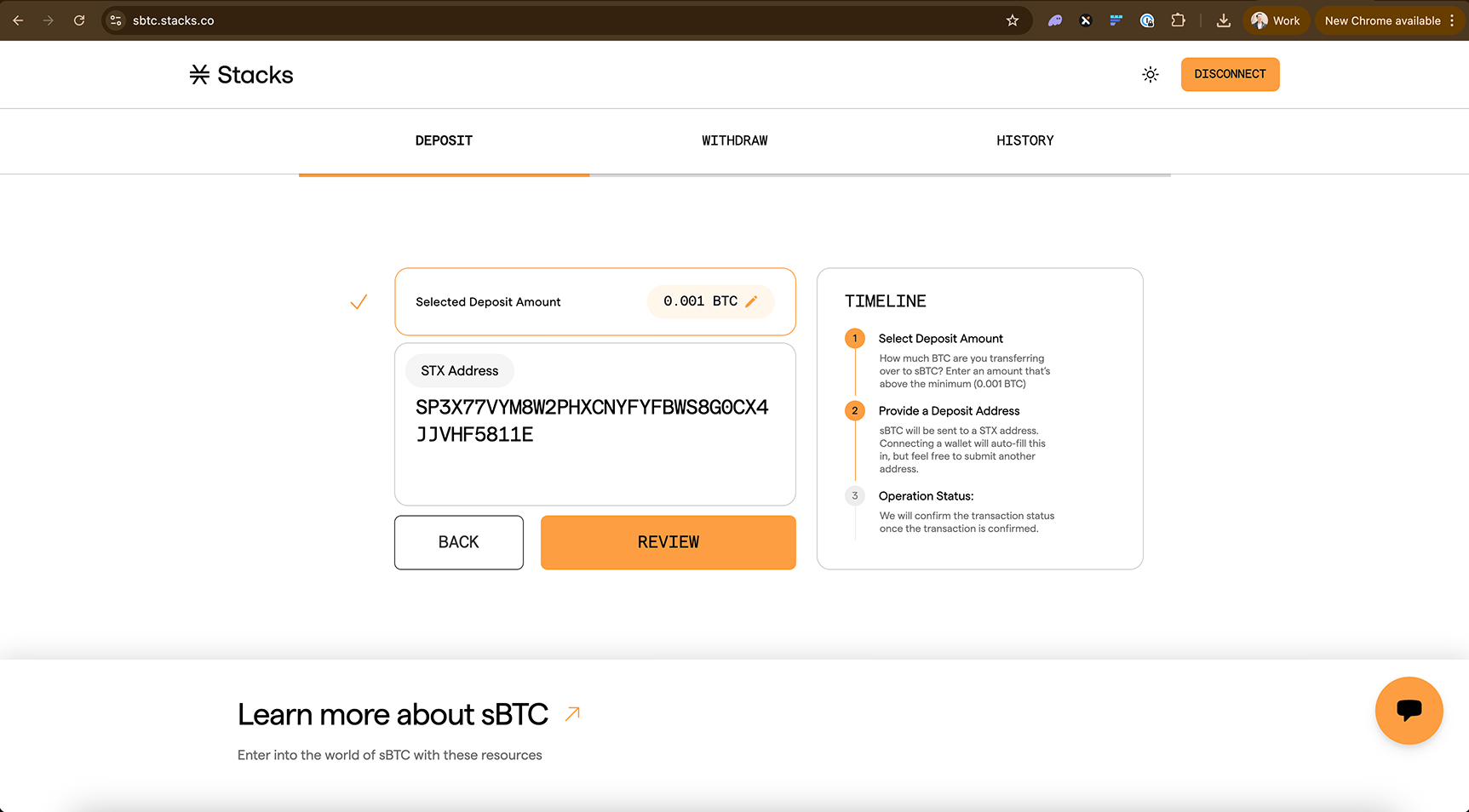
Next, enter the Stacks address you would like your sBTC minted to. This will just be the Stacks address associated with the Stacks vault that you selected earlier when connecting your Fordefi wallet extension.

<div data-with-frame="true"><figure><img src="https://2842511454-files.gitbook.io/~/files/v0/b/gitbook-x-prod.appspot.com/o/spaces%2FH74xqoobupBWwBsVMJhK%2Fuploads%2Fgit-blob-1d60b4bce29e269849950e640f8295bd26cfb18b%2Fimage%208-with-fordefi.png?alt=media" alt=""><figcaption><p>Review the inputted STX address and then confirm</p></figcaption></figure></div>
{% endstep %}

{% step %}
**Create initial BTC transfer**

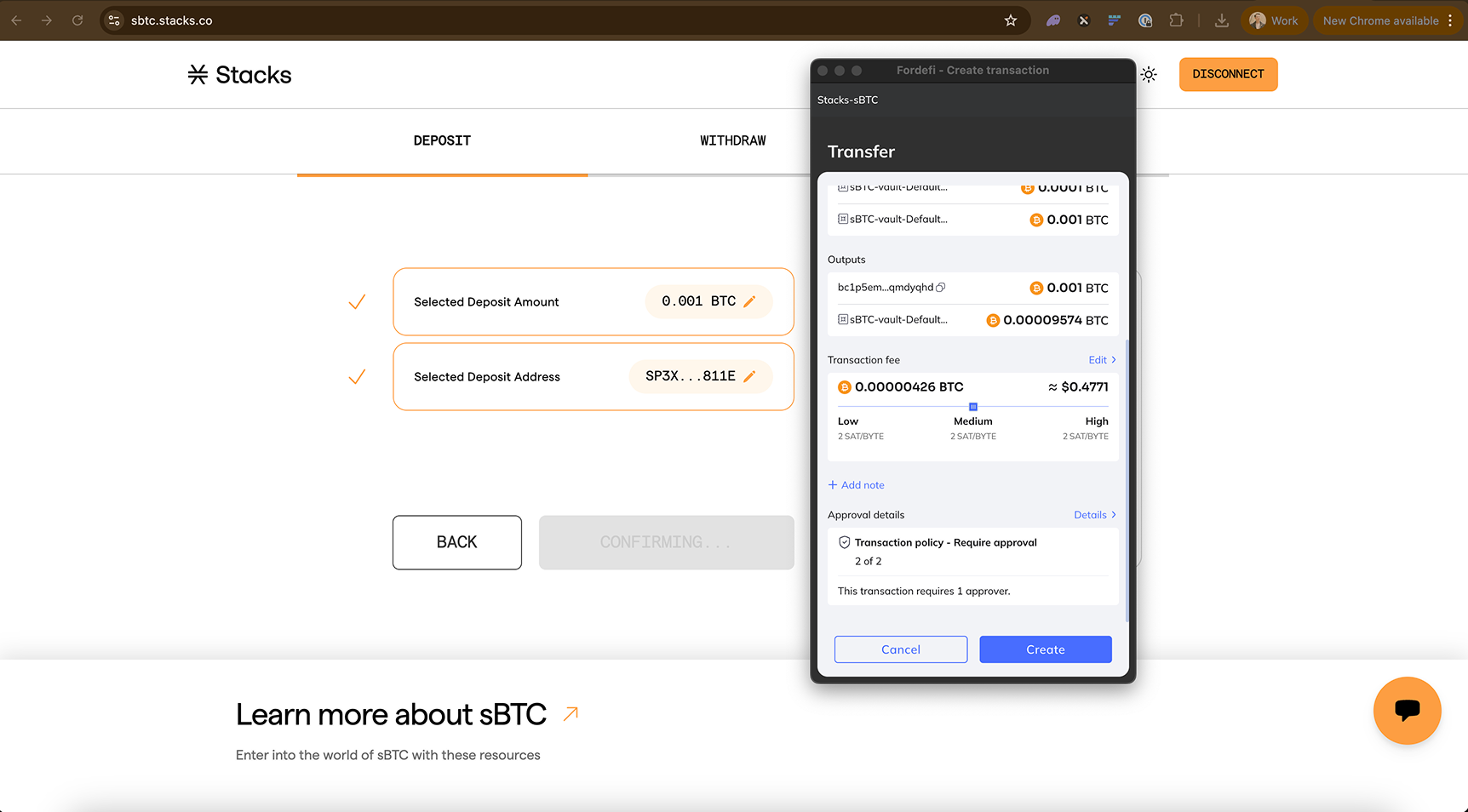
Your Fordefi wallet extension will pop up prompting you to create the BTC transaction. This transaction is the initial peg-in transfer for your BTC to the sBTC Signers. Hit 'Create' after you confirm the transaction details and necessary approval details.

{% hint style="info" %}
If you have a transaction policy setup with certain approvals required, hitting 'Create' will not initiate the bitcoin transaction, it will simply store this unsigned transaction in your Fordefi wallet until all necessary approvals are met and then finally signed.
{% endhint %}

<div data-with-frame="true"><figure><img src="https://2842511454-files.gitbook.io/~/files/v0/b/gitbook-x-prod.appspot.com/o/spaces%2FH74xqoobupBWwBsVMJhK%2Fuploads%2Fgit-blob-01595e7d39d4b7d5873edf6c77dabfc613d3d045%2Fimage%2011-with-fordefi.png?alt=media" alt=""><figcaption><p>You'll notice near the bottom of the Create Transaction view of the Fordefi extension is the required approval details. Be certain the other approvers are available to approve the transaction in a timely manner.</p></figcaption></figure></div>

<div data-with-frame="true"><figure><img src="https://2842511454-files.gitbook.io/~/files/v0/b/gitbook-x-prod.appspot.com/o/spaces%2FH74xqoobupBWwBsVMJhK%2Fuploads%2Fgit-blob-5bfe3c487a3806dffa2caf9efb607292224479df%2FGroup%20316124778%20(1)-with-fordefi.png?alt=media" alt=""><figcaption><p>If you ever navigate back to your Fordefi web UI or extension UI, you'll notice this transaction will be marked as 'Pending approval'.</p></figcaption></figure></div>
{% endstep %}

{% step %}
**Approve transaction by approvers**

Upon notice of transaction to approvers, each approver will need to approve transaction in their Fordefi mobile wallets before the completion of the final step, which is signing the transaction by the initiator.

Each approver will need to pull up the pending transaction in their Fordefi mobile wallet and hit 'Approve'.

<div data-with-frame="true"><figure><img src="https://2842511454-files.gitbook.io/~/files/v0/b/gitbook-x-prod.appspot.com/o/spaces%2FH74xqoobupBWwBsVMJhK%2Fuploads%2Fgit-blob-9b806f1b58f58f5052a69b1396b27299f1db8366%2FGroup%20316124778%20(2)-with-fordefi.png?alt=media" alt=""><figcaption><p>POV of approving transaction by approver</p></figcaption></figure></div>
{% endstep %}

{% step %}
**Sign approved transaction**

Once all transaction policies are satisfied and approved, the initiator will need to officially sign the transaction in their Fordefi mobile wallet.

This mobile signature action will then notify the sBTC Bridge app.

<div data-with-frame="true"><figure><img src="https://2842511454-files.gitbook.io/~/files/v0/b/gitbook-x-prod.appspot.com/o/spaces%2FH74xqoobupBWwBsVMJhK%2Fuploads%2Fgit-blob-3319d3c070cef54c71d8a2ffa23ee4e50d9d6493%2FGroup%20316124778%20(3)-with-fordefi.png?alt=media" alt=""><figcaption><p>The initiator will need to hit 'Sign' once approvals and transaction details are confirmed</p></figcaption></figure></div>
{% endstep %}

{% step %}
**Receive your sBTC**

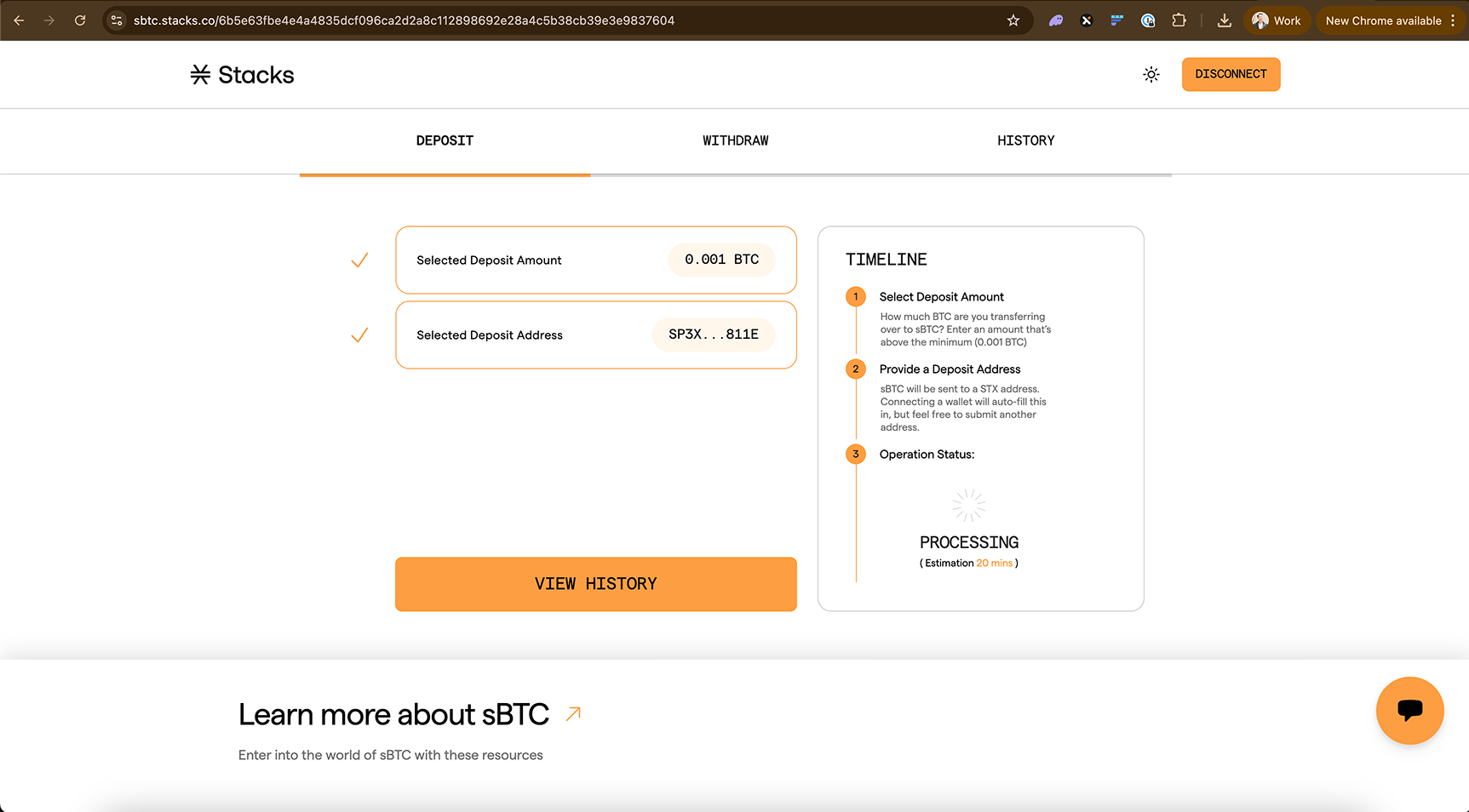
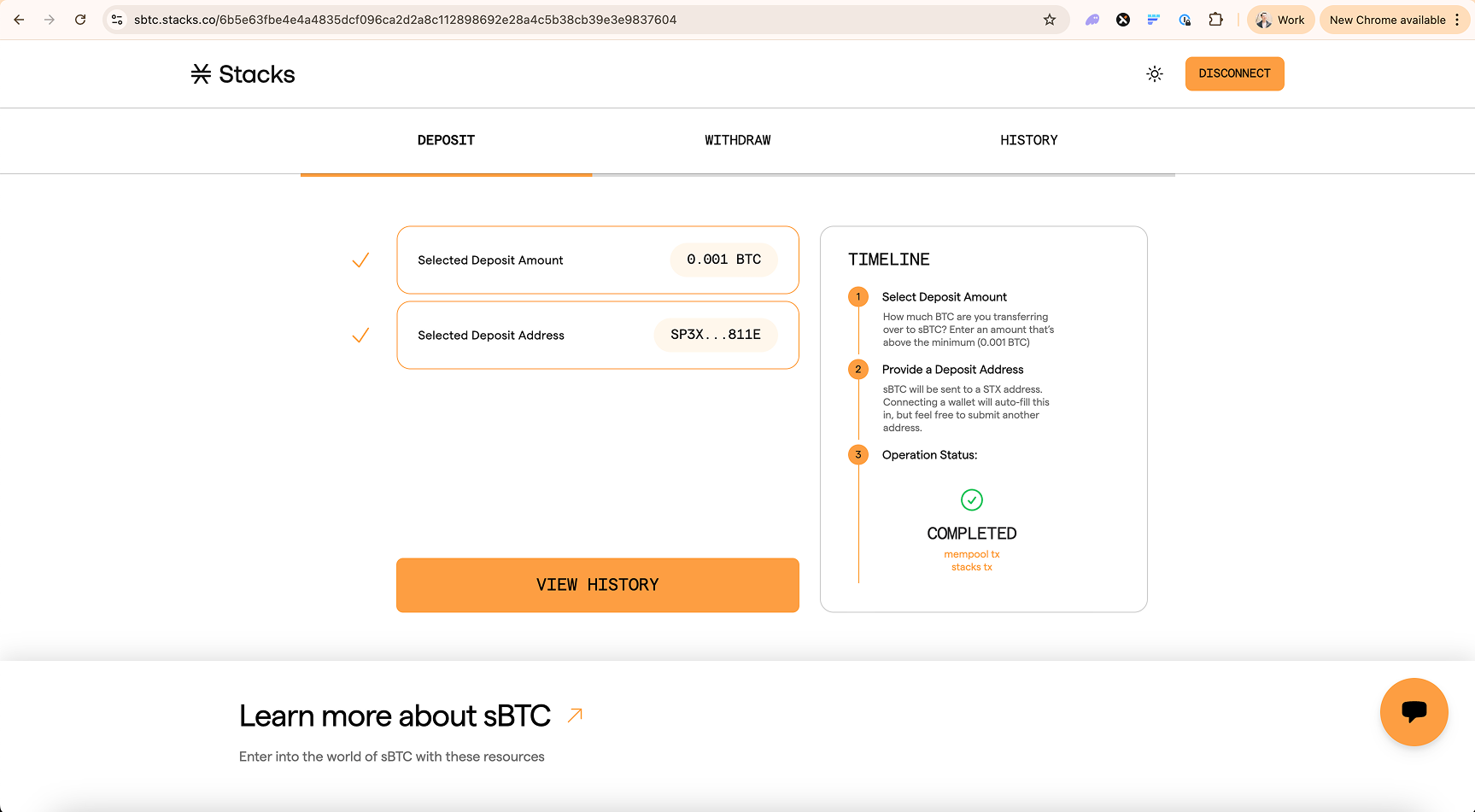
Back in the sBTC Bridge app UI, you can monitor the status of your transaction to see when it has been completed, at which point you can see the sBTC in your Fordefi wallet. It will go through three stages:

* Pending - Your [Bitcoin transaction](https://mempool.space/tx/6b5e63fbe4e4a4835dcf096ca2d2a8c112898692e28a4c5b38cb39e3e9837604) is processing
* Minting - Your Bitcoin transaction has processed and the [sBTC signers are minting](https://explorer.hiro.so/txid/a9e232289d2c6e50150b034894182d341343e7064b27c8dccbd25ebca79b2947?chain=mainnet) your sBTC
* Completed - Your sBTC has been minted to your wallet

<div data-with-frame="true"><figure><img src="https://2842511454-files.gitbook.io/~/files/v0/b/gitbook-x-prod.appspot.com/o/spaces%2FH74xqoobupBWwBsVMJhK%2Fuploads%2Fgit-blob-099e6b71c7f44d9ce44da3021f013d331fcf1387%2Fimage%2016-with-fordefi.png?alt=media" alt=""><figcaption><p>The bitcoin and sBTC transactions will take some time to be completely processed by the Signers</p></figcaption></figure></div>

<div data-with-frame="true"><figure><img src="https://2842511454-files.gitbook.io/~/files/v0/b/gitbook-x-prod.appspot.com/o/spaces%2FH74xqoobupBWwBsVMJhK%2Fuploads%2Fgit-blob-ff2615e1140651852f8fae8e3b28e3ed81f0f65e%2Fimage%2022-with-fordefi.png?alt=media" alt=""><figcaption><p>Once both the bitcoin and sBTC mint transactions are confirmed, the sBTC Bridge app will show a 'Complete' status</p></figcaption></figure></div>

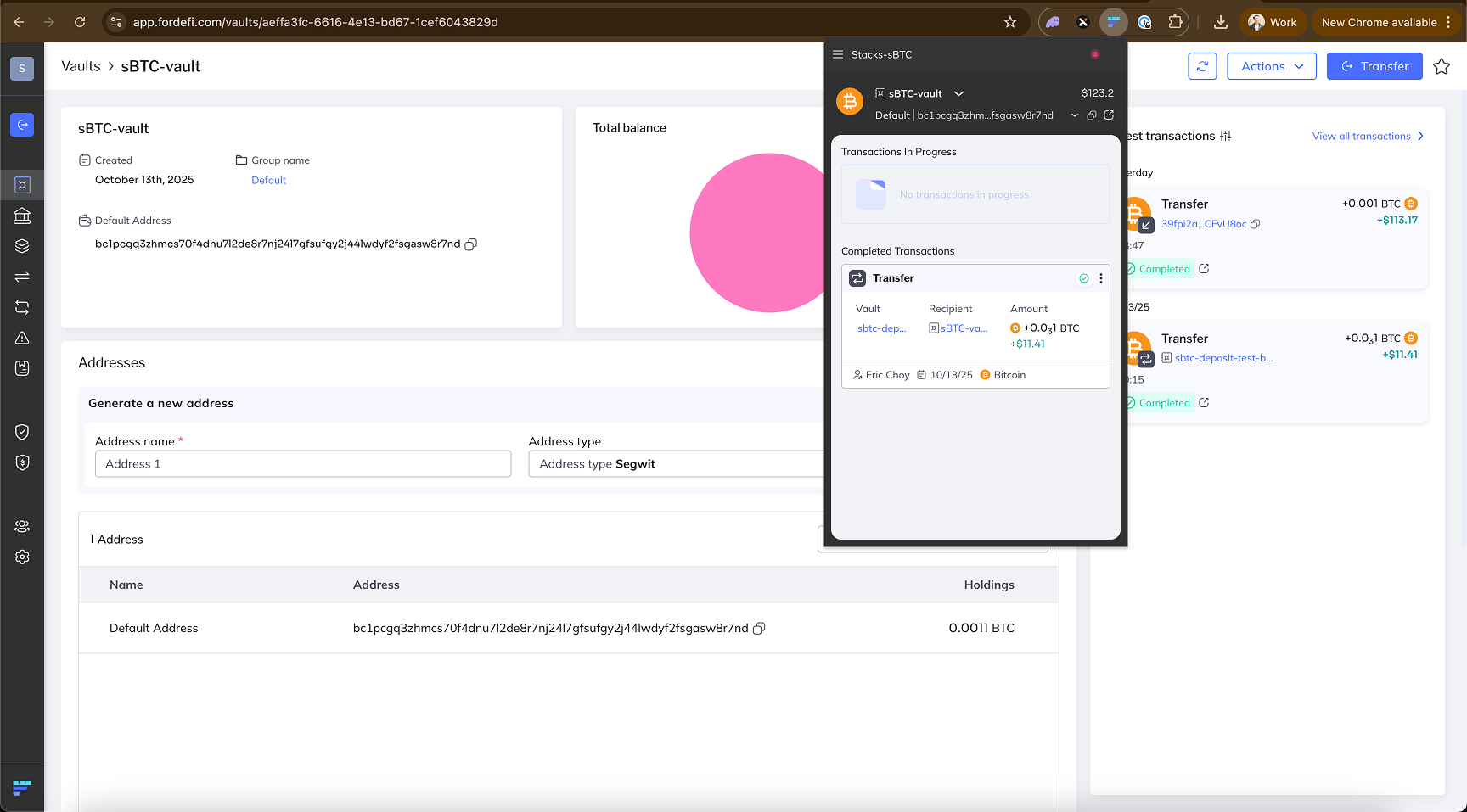
<div data-with-frame="true"><figure><img src="https://2842511454-files.gitbook.io/~/files/v0/b/gitbook-x-prod.appspot.com/o/spaces%2FH74xqoobupBWwBsVMJhK%2Fuploads%2Fgit-blob-86eb052ce8d5d34a9132728d15f3cbe5a6e81888%2FGroup%20316124778%20(4)-with-fordefi.png?alt=media" alt=""><figcaption><p>You'll be able to see the results of these transactions in your Fordefi wallet</p></figcaption></figure></div>
{% endstep %}
{% endstepper %}

### Reclaiming BTC

If your sBTC mint fails, you can reclaim your sBTC. You can do this via the bridge by visiting the reclaim page at <https://sbtc.stacks.co/\\>\<TX\_ID>/reclaim and replacing the bracketed text with your transaction ID as shown below:\
<https://sbtc.stacks.co/8f37f750b6646f0a217121201967170bd3cfef5f2ebd4f30f359b5e9308470c4/reclaim>

There is an intermediate step in between depositing BTC and the sBTC signers consolidating it into the single signer UTXO. If the transaction is not picked up by signers, you can reclaim it using this UI. Note there is a 'Lock Time' field on the Reclaim page. That indicates the amount of blocks that must have passed in order to reclaim your BTC.

<div data-with-frame="true"><figure><img src="https://2842511454-files.gitbook.io/~/files/v0/b/gitbook-x-prod.appspot.com/o/spaces%2FH74xqoobupBWwBsVMJhK%2Fuploads%2Fgit-blob-514951c8b0d9633e03d2c3aa3c95cd381b85201c%2Fimage%20(14)-sbtc-bridge.png?alt=media" alt=""><figcaption></figcaption></figure></div>

This initiates a Bitcoin transaction that will transfer your BTC back to you.